Hate your keyboard’s Copilot key? Remap it to any app you want

Newer keyboards often feature a Copilot key, which by default launches Microsoft’s AI chatbot. If you don’t use Copilot, you can reassign the key. To do this, open Windows ‘Settings’ and go to ‘Bluetooth & devices > Keyboard.’ Under ‘Customize the Copilot key on your keyboard’, you’ll find a small menu where you can select the ‘Search’ option.
Pressing the Copilot key will then open the search box, which you can access via the taskbar. Alternatively, you can set it to ‘Custom’. In this case, Windows will display the two apps “Microsoft 365 Copilot” (if available) and “Copilot”. Furthermore, using the latest version of Microsoft PowerToys, you can assign any programme to the Copilot key.
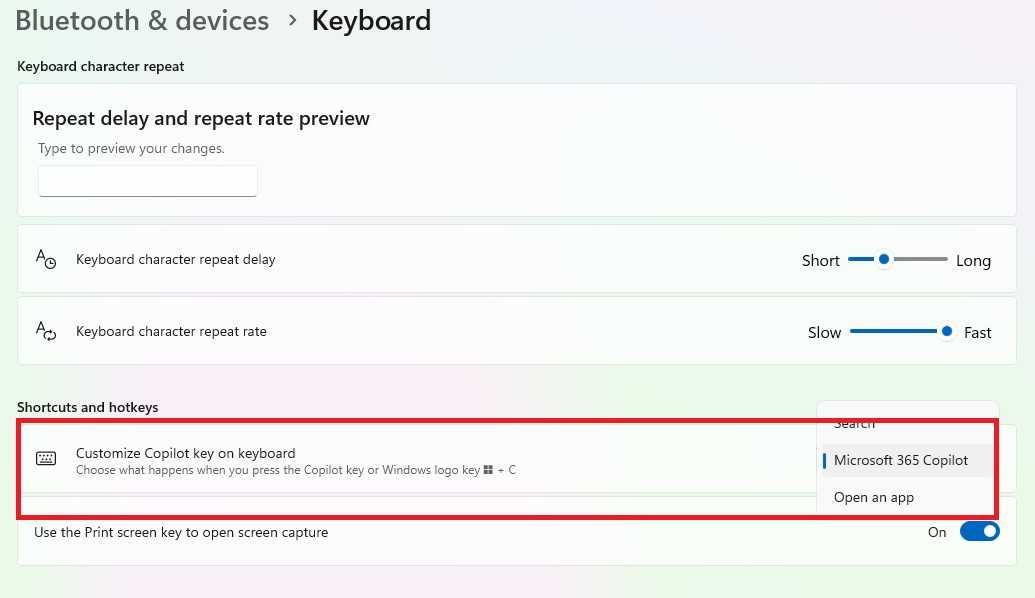
Via the Windows settings in the Start menu, you can reconfigure the Copilot key to a limited extent and, for example, use it to open the search function.
Foundry
Install PowerToys from the Microsoft Store and open the tools collection. Open the ‘Keyboard Manager’ and click ‘Open Settings.’ Toggle the switches for ‘Keyboard Manager’ and ‘Try the new editor’ to ‘On’ and click ‘Open Editor.’ Now go to ‘Add New Remapping’ and click in the empty field under the ‘Trigger’ menu.
Now press the Copilot key. You’ll see that this is actually a keyboard shortcut: Shift + Windows + F23. Next, open the drop-down menu under ‘Action’ on the right-hand side. Select ‘Open App’ and, after clicking the folder icon under ‘Program Path’, locate the EXE file for the desired application. You can accept the remaining settings as they are.
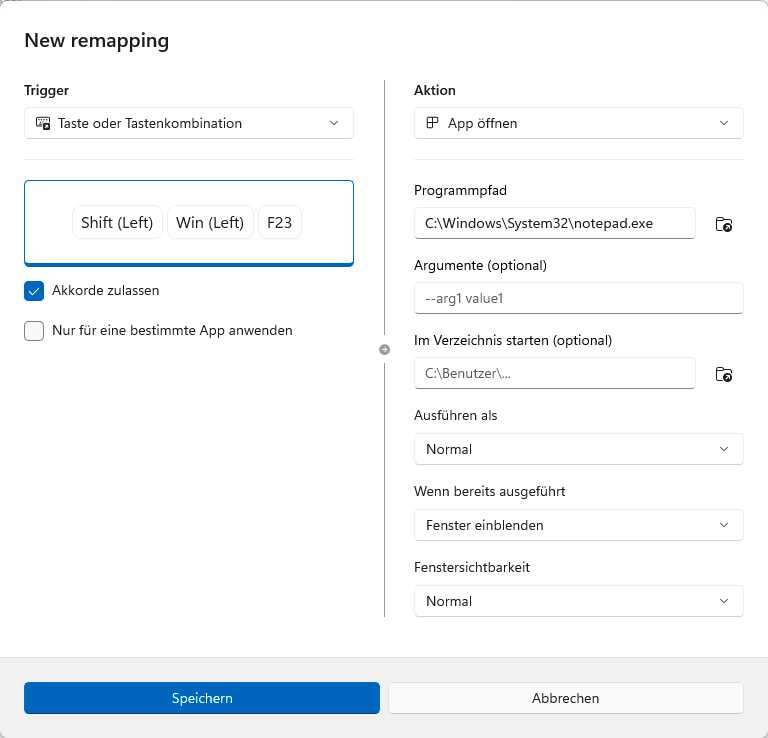
Using the new editor in the Keyboard Manager from PowerToys, you can assign any application to the Copilot key.
Foundry
Finally, click ‘Save.’ The new assignment for the Copilot key takes effect immediately and also overrides the selection in Windows Settings. If you wish to remove the assignment later, open the Keyboard Manager again. The ‘Keyboard Manager’ window will then appear.
Click the three dots at the far right of the row containing the assignment, select ‘Delete’ and confirm the security prompt.
Related content
Newer keyboards often feature a Copilot key, which by default launches Microsoft’s AI chatbot. If you don’t use Copilot, you can reassign the key. To do this, open Windows ‘Settings’ and go to ‘Bluetooth & devices > Keyboard.’ Under ‘Customize the Copilot key on your keyboard’, you’ll find a small menu where you can select the ‘Search’ option.
Pressing the Copilot key will then open the search box, which you can access via the taskbar. Alternatively, you can set it to ‘Custom’. In this case, Windows will display the two apps “Microsoft 365 Copilot” (if available) and “Copilot”. Furthermore, using the latest version of Microsoft PowerToys, you can assign any programme to the Copilot key.
Via the Windows settings in the Start menu, you can reconfigure the Copilot key to a limited extent and, for example, use it to open the search function.
Foundry
Install PowerToys from the Microsoft Store and open the tools collection. Open the ‘Keyboard Manager’ and click ‘Open Settings.’ Toggle the switches for ‘Keyboard Manager’ and ‘Try the new editor’ to ‘On’ and click ‘Open Editor.’ Now go to ‘Add New Remapping’ and click in the empty field under the ‘Trigger’ menu.
Now press the Copilot key. You’ll see that this is actually a keyboard shortcut: Shift + Windows + F23. Next, open the drop-down menu under ‘Action’ on the right-hand side. Select ‘Open App’ and, after clicking the folder icon under ‘Program Path’, locate the EXE file for the desired application. You can accept the remaining settings as they are.
Using the new editor in the Keyboard Manager from PowerToys, you can assign any application to the Copilot key.
Foundry
Finally, click ‘Save.’ The new assignment for the Copilot key takes effect immediately and also overrides the selection in Windows Settings. If you wish to remove the assignment later, open the Keyboard Manager again. The ‘Keyboard Manager’ window will then appear.
Click the three dots at the far right of the row containing the assignment, select ‘Delete’ and confirm the security prompt.